
Installing UptimeLogger
macOS (11 Big Sur or newer)
- Open the DMG and drag
UptimeLogger.apponto theApplicationsshortcut beside it. - On first launch macOS says the developer cannot be verified. Open System Settings → Privacy & Security (macOS 13 Ventura and newer) or System Preferences → Security & Privacy (macOS 11 and 12), scroll to the message about UptimeLogger and choose Open Anyway.
- The icon appears in the menu bar. Choose Open Dashboard to see your data.
The application has no Dock icon and no entry in the app switcher on purpose — it is a background monitor.
Homebrew
If you use Homebrew, the cask is available from our own tap:
brew tap roughneck/uptimelogger
brew trust roughneck/uptimelogger
brew install --cask uptimelogger
The middle line is not optional. Homebrew refuses to load third-party taps that you have not explicitly trusted. It installs exactly the DMG linked above and checks it against the same checksum, so the first-launch step in Privacy & Security still applies.
Wi-Fi network names
Recent macOS versions only reveal the Wi-Fi name to applications that have location
permission. UptimeLogger works fully without it; the Network column then simply shows the
interface on its own, for example en0. Turn on Look up the Wi-Fi name
in the settings if you want the name, and grant the permission macOS asks for.
Windows (10 or newer)
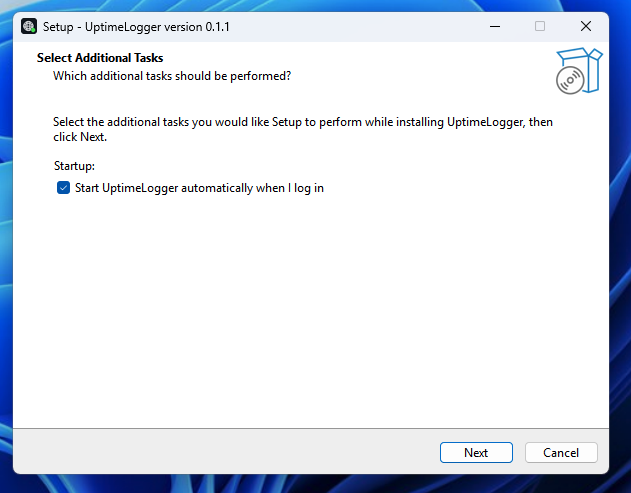
- Run the installer. It installs for the current user and needs no administrator rights. Start UptimeLogger automatically when I log in is ticked by default; untick it if you would rather start the program yourself.
- SmartScreen warns about an unknown publisher. Choose More info → Run anyway.
- The icon appears in the notification area.
Starting automatically
The switch is Settings → Start automatically when I log in and works the same on both systems. The Windows installer offers the same thing as a checkbox, and both write the same entry, so the two can never disagree.
- Windows: an entry under
HKCU\Software\Microsoft\Windows\CurrentVersion\Run— the same list the Task Manager's Startup tab shows. Switching it off there wins, and UptimeLogger then reports "off" as well rather than claiming an autostart Windows is ignoring. - macOS: a launch agent at
~/Library/LaunchAgents/app.uptimelogger.plist. It takes effect at the next login.
Neither entry needs administrator rights, and both apply to your user account only.
Where the data lives
- macOS:
~/Library/Application Support/UptimeLogger/uptimelogger.db - Windows:
%LOCALAPPDATA%\UptimeLogger\uptimelogger.db
Deleting that folder removes every recorded event and every setting. A small log file of
recent unexpected errors, uptimelogger.log, lives next to the database.
Uninstalling
Quit UptimeLogger from the tray menu first on either platform, so it is not running while you remove it.
- macOS: drag
UptimeLogger.appfrom/Applicationsto the Trash. The database and the log are not inside the bundle and are left behind; delete~/Library/Application Support/UptimeLoggeryourself if you also want the recorded history gone. Switch the autostart off before uninstalling, or delete~/Library/LaunchAgents/app.uptimelogger.plistby hand — otherwise macOS keeps trying to launch a program that is no longer there. - Windows: use Settings → Apps to find UptimeLogger
and uninstall it. That removes the program and the autostart entry, but not
%LOCALAPPDATA%\UptimeLogger.
Troubleshooting
A saved link to the dashboard does not load, but the application is running
If port 17641 was already taken when UptimeLogger started, it binds the next free port instead. Always use Open Dashboard from the tray menu — it opens whatever port the application is actually using.
A short outage right after waking from sleep is missing from the log
After a gap, UptimeLogger waits out the Wait after waking from sleep setting before it starts recording again, so a wobbly reconnect is not logged as an outage. Lower the setting (down to 0) if you would rather see every short outage at the cost of the occasional false one.
Something else looks wrong
The first place to look is the log file next to the database. It is a small, capped file of the application's own error messages — including database and bind failures — and is almost always more specific than anything visible in the dashboard.
If it helped
UptimeLogger is free and stays free. If it saved you an argument with your provider, you can buy me a coffee.